Schedule Info
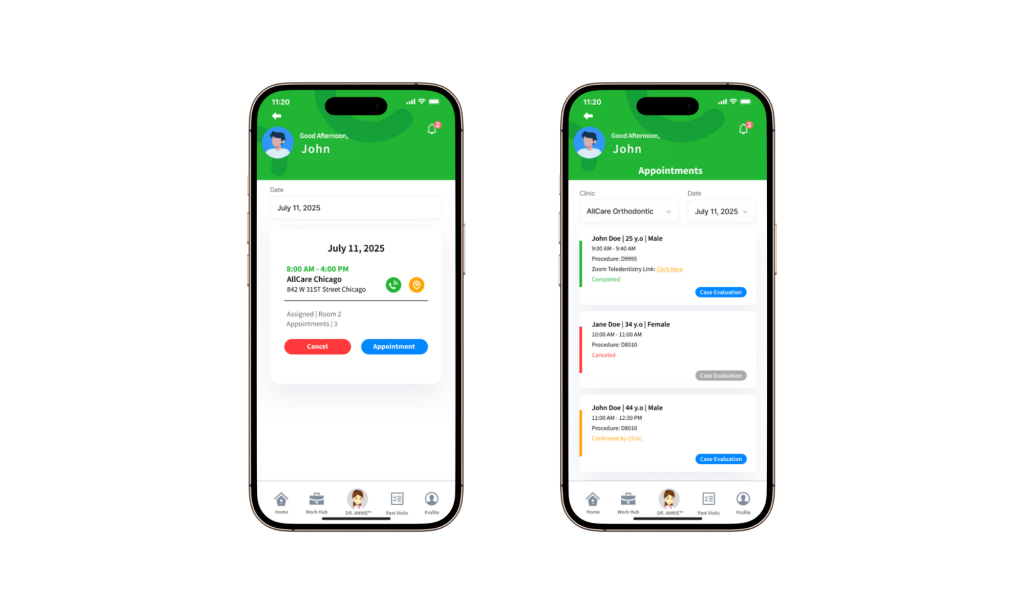
Tap a schedule card on the dashboard to open the Schedule Info page and view detailed schedule information.
Appointment List
Select the Appointment button to view patients scheduled for that day.
Each patient entry includes a color indicator:
- Green: Appointment completed
- Red: Appointment canceled
- Yellow: Clinic confirmed, patient has not yet visited
Additional Appointment Features
- Zoom Teledentistry Link
Available if the patient requested a remote consultation. - Case Evaluation Button
Appears once the patient releases their dental evaluation via the iSmartOffice™ Patient app.
Past Visit Tracking
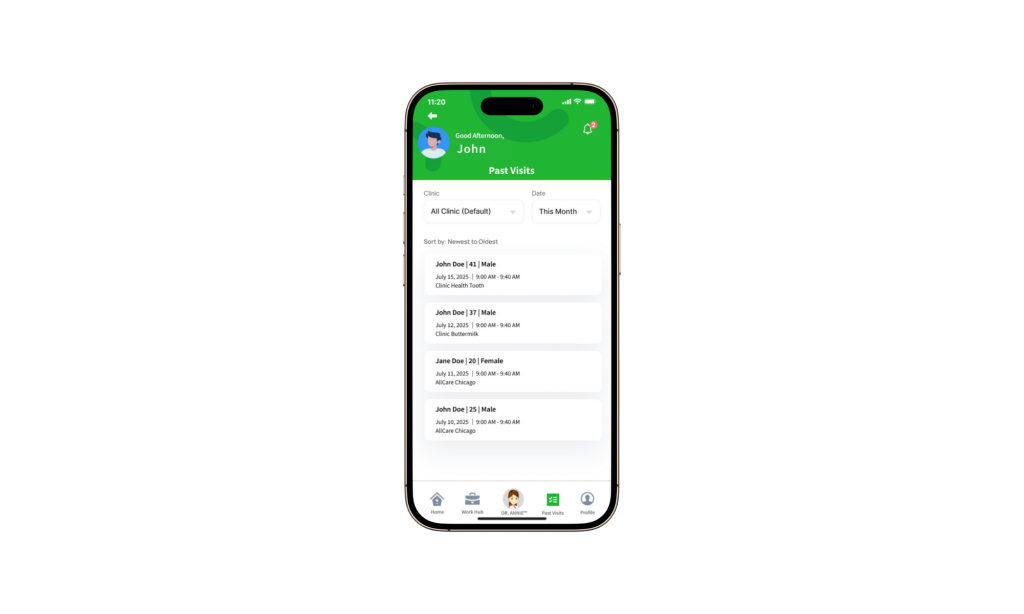
After a visit is completed, the patient record automatically moves to Past Visit, allowing you to review and track previous appointments.